
Open the package and confirm you have everything below before you start the setup.
Four things to know before you start. Open the protective flap on the side of the tracker to access the charging port and switch.
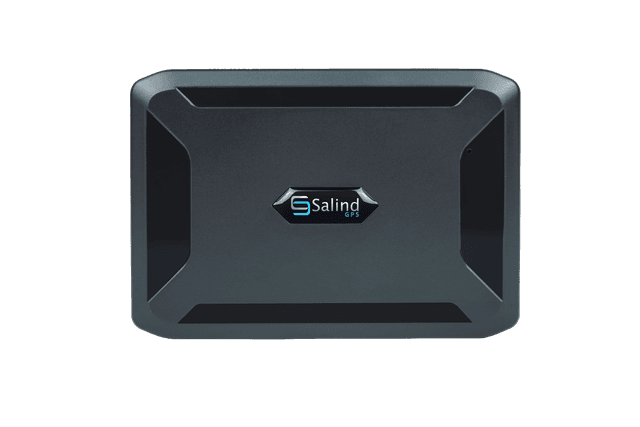
- Protective flapCovers the charging port and on/off switch. Open it gently to reach both.
- LED signals (3)Orange (network), blue (GPS), red (battery / charging).
- USB-C charging portSits behind the flap. Use the supplied cable only.
- On/off slide switchSits behind the flap, next to the port.
The device ID is printed on the back of the tracker.
Four steps. The whole process takes a few hours but you can leave it plugged in overnight — there's an automatic safety cutoff.
Connect the charging cable.
Plug the supplied USB-C cable into the charging port on the back of the tracker.
Plug into a USB wall adapter.
Connect the other end to a USB wall adapter. If one isn't in the box, any standard USB wall plug works.
Plug the adapter into a power outlet.
A standard 110–220V outlet.
Wait for the red LED to switch off.
When the red LED goes out, the tracker is fully charged. See the LED lights section below for what each color means.
You need to register and activate the device online before the tracker can report its location.
- Open start.finder-portal.com in a browser.
- Follow the on-screen prompts to pick a subscription plan and register the device using its ID.
- Download the FINDER Portal app on iOS or Android.
The on/off switch sits under the protective flap. Slide to ON to power up the tracker; slide to OFF to turn it off.
Once the device has activated and reported its first position, you can track it from your phone, tablet, or computer.
The app looks the same on every device. Along the bottom of every screen sits the navigation bar — reading left to right, these are the five areas you'll use most.
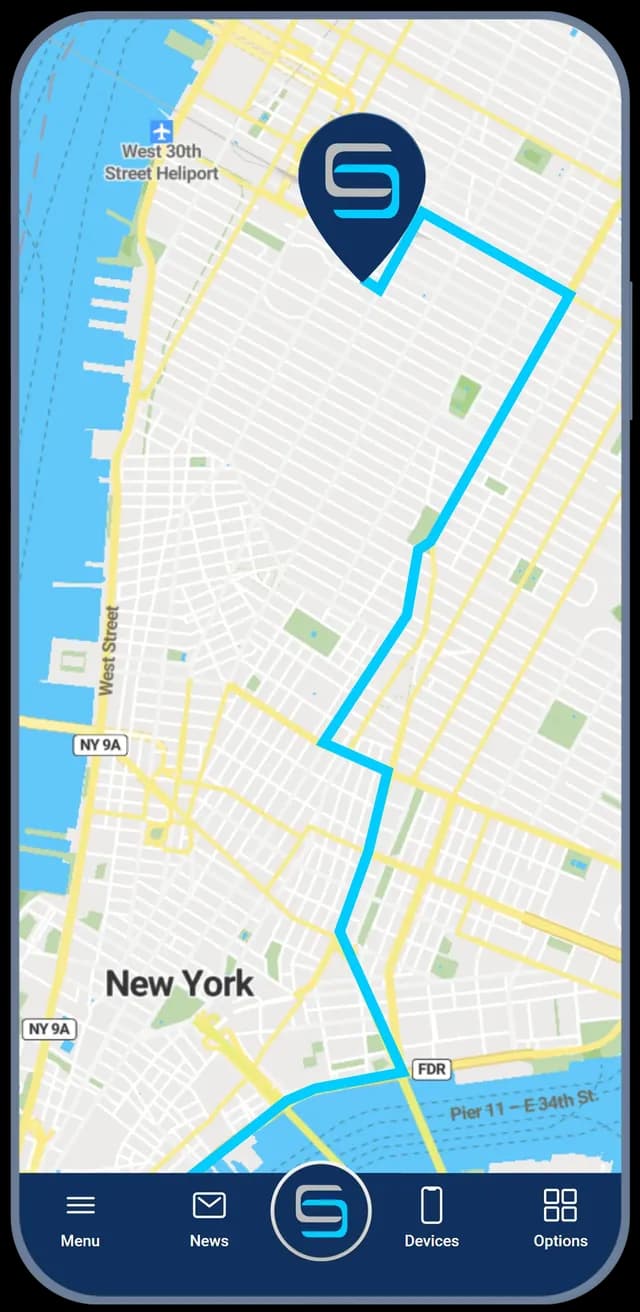
- MenuStatistics, device settings and alarms.
- NewsYour latest activity, unread notifications and timeline.
- Live mapThe middle button jumps back to the live tracking view.
- DevicesAll your trackers, with alarm settings and route history.
- OptionsMap view options.
By default the tracker reports its position every 30 seconds. After a few minutes of no movement, it enters standby to preserve battery.
In standby, the FINDER Portal shows the last known position with a "Standby" badge. The tracker still listens for alarm events and still reports a fresh position at least every 24–26 hours. The moment it moves again, it switches back to live mode and resumes 30-second updates.
Each LED reports the health of one subsystem. Read them as a row to know what the device is doing right now.
- On solidCellular signal available
- FlashingNo signal
- OffTracker is in standby or off
- On solidGPS signal available
- FlashingNo GPS signal
- OffTracker is in standby or off
- OnBattery is charging
- OffBattery fully charged
Configure each alarm inside the FINDER Portal. They run independently — turn on as many as you need.
Movement / Vibration alert
Get notified the moment the tracker is moved or shaken while parked.
Geofence alert
Get notified when the tracker leaves (or enters) a custom area you draw on the map.
Speed alert
Get notified when the tracker exceeds a speed limit you set in the portal.
Battery alert
Get notified before the battery runs dry.
Drop / Removal alert
Get notified the moment the tracker is lifted from its mount.
All alerts are configured inside the FINDER Portal. Once enabled, notifications fire to the app and to your email.
Pulled from the user manual and technical sheet. Reference values, not marketing claims.
| Weight | 300 g (~10.6 oz) |
|---|---|
| Dimensions | 112 × 78 × 27 mm (4.4 × 3.1 × 1.1 inch) |
| Battery — standby | Up to 70 days |
| Battery — in operation | ~40 days (1 h/day) · ~14 days (6–8 h/day) |
| Battery type | 3.7 V · 7800 mAh Li-ion |
| Charger | 110–220 V AC 50 Hz input · 5 V/2 A DC output |
| Cold start | 3–5 min |
| Standby start | 1–3 min |
| In-operation start | 1–10 sec |
| GPS chip | AT6558R |
| GPS accuracy | approx. 5–10 m |
| GPS reception sensitivity | −162 dBm |
| Operating temperature | −20 °C to +75 °C (−4 °F to +167 °F) |
| Storage temperature | −30 °C to +80 °C (−22 °F to +176 °F) |
| Humidity | 10 % to 85 % |
| Water protection | Splash proof — IP65 (per User Manual) |
| SIM | Pre-installed M2M, non-replaceable |
| Coverage | 100+ countries |
- Use only the supplied charging cable. Don't replace with non-original parts.
- Don't open the case. The lithium-ion battery is not user-replaceable. Contact support if it needs service.
- Keep away from open flames and high-heat surfaces (e.g. dashboard in direct sunlight).
- Splash proof — not waterproof. Don't submerge.
- For full safety, electromagnetic compatibility, battery disposal, and WEEE disposal information, see the PDF.
Visit our Support Page — available 24/7.